
Spreadsheets are dead, right? Wrong! Not only are they a great tool for teaching programming concepts, they can easily be addressed under the Computing programme of study.
If you’re not entirely convinced, the key thing to remember is that a spreadsheet is a modelling tool. In other words, it’s designed to answer the question, ‘What if?’. For example, what if the price of bread goes up by 50p a loaf? How will that affect a family’s budget?
The first thing to do is ensure pupils understand how a spreadsheet is set out, and what the correct terms are. It’s made up of columns going across from left to right (A, B etc) and rows going from top to bottom (1, 2 etc). The rectangles formed in this grid are called ‘cells’.
Pupils need to understand cells and cell references because this is where the idea of variables comes in. Unlike a calculator, where you would enter, say, 112 x 731, in a spreadsheet you would enter a formula that multiplies the cells that contain those numbers. In this case, the formula might be =A2*B2. The cells A2 and B2 are called ‘variables’ because the numbers in them can be changed, that is, they can vary.
Behind the scenes
This may sound a bit complicated, but you can introduce the idea in a very simple way, by constructing a sweets spreadsheet.
Enter the formula (=A2/A3) yourself, so that all the pupils have to do is enter the number of people there are and how many sweets have to be shared between them. Ask the pupils what they think is going on, and that will lead on to looking at the formula behind the scenes.
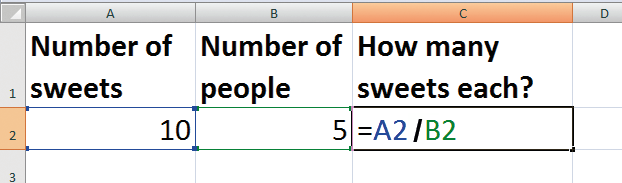
What’s going on behind the scenes? Cells A2 and B2 contain variables. Illustration: Cells and variables, by Terry Freedman
In fact, that ‘behind the scenes’ phrase is very appropriate: unlike in a programming environment like Scratch, a spreadsheet shows you the results but hides the code. With Scratch and other coding programs, you can see the code (or a representation of it), but not the results.
How can you help pupils to understand the concept of cell references? I’ve devised a very simple (and silly!) spreadsheet to help them do so. I enter a ‘secret’ message in a few cells, and format them to be the same colour as the background, that is, white. The instruction to pupils is to select those cells in order to reveal the message. Obviously they have to understand what the cell references mean in order to be able to do so. Then they have to make their own secret message.
What if…
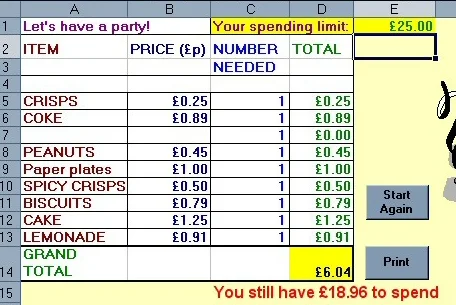
A good way of helping pupils understand the idea of variables and using a spreadsheet to answer ‘what if’ questions is to create a party planning spreadsheet. You may baulk at the idea of creating the spreadsheet yourself, but the point is that getting the kids to enter all the data themselves is a waste of time: the national curriculum doesn’t call for them to be skilled in data entry.
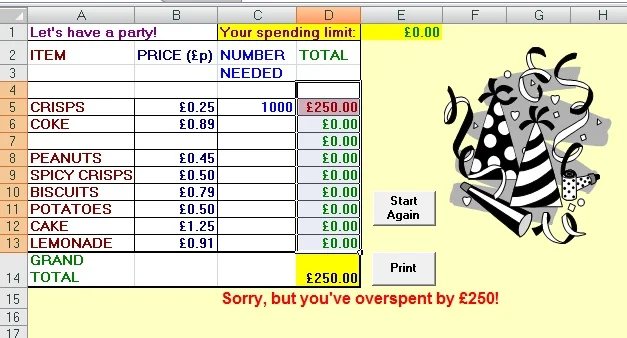
The main formula here is the SUM function (D14). The IF formula (C15) and the buttons are optional Illustration: Party time, by Terry Freedman
You might, of course, ask them to experiment with putting the formula in themselves once they have become used to experimenting with the spreadsheet.
As well as variables, spreadsheets can be used to get across the idea of conditional statements, that is, IF-THEN-ELSE. There are two ways you can do this.
One way is to set up an age checker spreadsheet. You can get the pupils to play with it for a bit, and then try to work out what is actually going on. With older children you could even get them to write down the steps in ordinary language (pseudocode) or as a flowchart.

Pupils enter their age in the yellow cell. How could they make the age checker more sophisticated? Illustration: age checker, by Terry Freedman.
The formula looks complicated, but all it’s saying is if the number entered in cell A13 is less than 10, then show the text “Sorry, you are too young”, otherwise show the text “Sorry, you are too old”.
It’s based on the general principle, IF (x,y,z), which means: check if the condition X is met. If it is, do Y. If it isn’t, do Z. In everyday life an example would be: IF it is raining, take an umbrella, otherwise do not take an umbrella.
Another option is to use conditional formatting. On the party planner spreadsheet, for example, you can ‘tell’ Excel to shade a cell red if the total amount of spending on any one item comes to more than £10. To do that, select the totals column, then select ‘Conditional formatting’ on the Home tab, then ‘Highlight cell rules’, then ‘Greater than’, and then change the number to 10.
Real-life scenarios
Here are some ideas for things that children can use a spreadsheet for:
Calculating what percentage of pupils in the school come by bus, train, car or walk
Planning a party (stipulate a maximum spend of, say, £50)
Creating a school timetable (stipulate a maximum number of hours per week such as 100)
Sports: use conditional formatting to show highest and lowest scorers, for example
Spreadsheets can be great fun, and can open the doors to playing with data and understanding a few programming concepts. Looking at modelling, variables and conditional statements and formatting will provide a strong foundation for learning to code.
Digital skills
Although the computing programme of study is primarily concerned with, well, computing, it recognises the need for children to develop other digital skills.
For example, one of the statements for KS1 is, ‘Use technology purposefully to create, organise, store, manipulate and retrieve digital content.’ Getting children to create a spreadsheet and manipulate data through it is one way to address that requirement.
Another statement is, ‘Recognise common uses of information technology beyond school.’ Once the children have been shown what a spreadsheet can be used for, it’s not difficult to get them to imagine other uses – in the school itself, and the world beyond.
At KS2, pupils are required to work with variables. That’s precisely what spreadsheets were originally intended for, so again, spreadsheets are an excellent fit.
A KS2 statement reads, ‘Design and create a range of programs, systems and content that accomplish given goals, including collecting, analysing, evaluating and presenting data and information.’ Each of the skills suggested in the second half of this statement can be addressed through spreadsheets.
In other words, as well as being good to teach as an end in themselves, spreadsheets represent what we might call ‘low-hanging fruit’: pupils can discover how to manipulate data before attempting to write any code with which to do so.
This article first appeared in Teach Primary magazine. If you found it useful, why not sign up to my newsletter, Digital Education? You can find out more about it, and subscribe for free, here: Digital Education.