

Review of Leading a Digital School
Can a book about leading a digital school be of any interest to ICT leaders? Read on and find out.
Read MoreThe Reform Symposium Conference
What a weekend! From Friday to Sunday, the Reform Symposium Conference was in full swing (apart from the scheduled breaks, of course). A truly international conference, it not only featured presenters and enjoyed participation from all over the world, the organisers planned it such that events started at convenient times for people all over the globe. That made a nice change from having to stay up half the night to catch every session!
 The Reform Symposium
Unfortunately, I was able to attend only a few sessions, because a malignant Fate, to use a phrase much-loved by Dornford Yates, decreed that my plans to work on Monday and Tuesday had to be brought forward to Sunday instead. The sessions I did attend were interesting. I especially liked one by Nicholas Provenzano called Everything I Learned About Tech Integration I Learned From Movies. I had to leave part of the way through, but it looked like an innovative approach to talking about educational technology, taking quotations from films and applying them in a new context.
Lisa Dabbs and Joan Young gave a practical talk called New Teacher Survival Kit, which I think should be essential viewing for anyone working with new teachers. I was slightly concerned when the whole focus seemed to be on being positive in a positive kind of way. What I mean is, I sometimes think that the most positive thing you can do is tell someone they’re mistaken, and in my experience there are some people who don’t get the key message if you package it up with lots of nice fluffy compliments. So I was pleased that Joan’s response, when I raised it as an issue, was to pretty much agree.
Steve Hargadon opened the conference with an interesting keynote about social media in education, and this was followed by a talk by George Couros called Identity Day: Revealing the Passions of Our Students, which basically said that in order to teach effectively you have to know your students. Absolutely. Teaching, like business and any other human transaction, is ultimately based on relationships.
I was honoured to have been invited to give a keynote, and spoke about using a project management approach to introducing Web 2.0 into your classroom.
The sessions were all recorded, and should eventually be available for viewing – some are there already, but others may take around a week. Go here for the schedule, and click on the link in the column called Webinar Link for the session you wish to view. I intend to look at all of them.
Top marks to the organisers Shelly Terrell, Christopher Rogers, Jason Bedell and Kelly Tenkely and their team of moderators for their tireless efforts, advanced planning and attention to detail. The odd glitch was handled deftly and virtually without anyone noticing. I was especially gratified when Phil Hart got my slides going despite some horrible error messages I kept getting whilst trying to upload the PowerPoint. Thanks also to my friend Peggy George, who took time out to show me some of the functionality of Elluminate, as it had been a while since I’d used it.
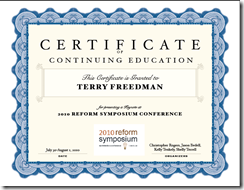
Finally, it was a nice touch to give presenters a certificate. You can see mine here.
Remember: check out the presentations! Whilst looking at them, think about whether they could be useful for you when running a CPD session. Don’t ignore the chat window: as is often the case, what’s going on in the chat is an interesting complement to the presentation proper.

Review of Marxio
Update: Marxio appears to be no longer available, and I am trying TimeLeft instead (see bottom of article for link). You may, of course, wish to read this review anyway for its erudition and general insightfulness :-)
If you're anything like me, time is always at a premium. But relying on the clock in the toolbar isn't always effective as a way of keeping you on track. There’s a pretty good timer from Marxio. I set it to remind me to take a break every 20 minutes. (I often ignore it, but that’s another matter.) Obviously, you could use it to set a time limit for reading, or writing, or anything else.
 Timely reminders
As you can probably tell from the screenshot, there’s a wealth of options. And it’s free! Download it from the Marxio website, where you can see a list of features.
I quite like it, although I haven't used it for a while. I especially like the fact that you can configure your own settings, such as the text of the reminder and when it appears, and save them as a "schema". Why not give it a whirl?
This is a slightly amended version of an article that first appeared in Computers in Classrooms, the free newsletter about educational ICT.
Update on 2010-07-21 11:36 by Terry Freedman, Educational ICT Consultant
Blast! I just tried to re-download Marxio and it seems to have disappeared. I am now trying out TimeLeft instead.
Xobni
I am in love. I wasn’t expecting this to happen, it was just one of those things. I was in my local supermarket, browsing through the latest copy of PC Advisor, just going about my business. Then, one thing led to another and, well, what can I say?
The object of my affections is Outlook. I have used Outlook for my email on and off over the years, but have never really liked it. Over-featured and unwieldy, it’s slow at finding emails and hopeless at finding conversation threads. It has some good features, admittedly, which is why I stick with it, but that slow grinding away of the search function drives me insane.
However, Xobni, which is reviewed in PC Advisor, changes all that, and does so much more. In fact, I don’t think it’s an exaggeration to say that Xobni makes Outlook work as it was meant to; it’s what Microsoft should have done to make Outlook not merely usable, but useful.
What Xobni does is index your emails and analyse them, and places an extra pane in your Outlook view. Searching is incredible, because Xobni works the way people do. Take a typical scenario. I am about to phone you to discuss the ICT Vision document you’ve commissioned me to write. What will I need before I pick up the phone? Your phone number, obviously. The email containing the brief you sent me. The follow-up email you sent clarifying a couple of points. And, for when I send you an email confirming what we end up agreeing in the phone conversation, the name and email address of your colleague to whom you always cc your emails.
To obtain all this information, I simply type your name into the search box, and I see something like this, virtually instantly most of the time.
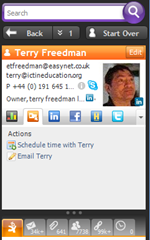
As you can see, it has collated my contact information so that I have your email address(es), phone number, Skype link, and Twitter, Facebook and Linked-In details (if I’ve added you as a friend in those applications).
A row of icons at the bottom of the panel gives me instant access to our email conversations, attachments sent, and other potentially useful information. As for the name and email address of your colleague, that’s contained further down in the panel shown in the screenshot (which I’ve cropped to avoid giving other people’s details).
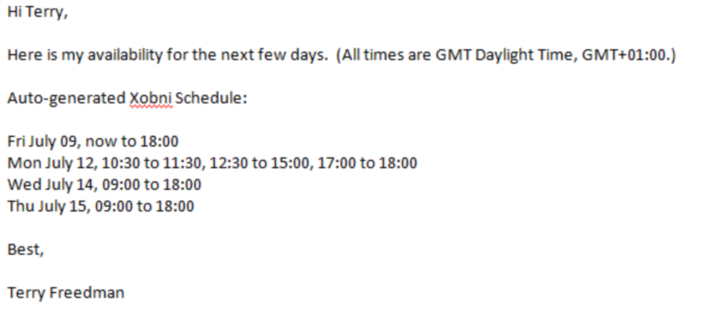 Xobni can also suggest meeting timesThe application is also linked to the Outlook calendar. If I click on “Schedule time with …” an email like the one shown is automatically generated. Xobni has looked at my calendar for the next few days and suggested times when I have no appointments.
Another feature is that it gives you lots of metrics. For example, it will tell you the times of day that people respond to your emails, the purpose being to enable you to call them when they’re most likely to be in the office.
There’s a free version of Xobni that works just fine. The paid-for version costs $29.50 and has an advanced search function and works on more than one .PST file. I tried the free version, and liked it so much I bought the upgrade. I think in terms of time and my blood pressure it paid for itself on the very first use. You can find out more about the program and download it from the Xobni website.
Review of Own-It
Here’s a question for you. If you run a website which involves becoming a member in order to use it, is it OK to ask children to sign up? If you don’t know the answer to this, it may be a good idea to head over to Own-It, and check out the facts for yourself.

Own-It is a website that is dedicated to providing free advice on Intellectual Property (IP) and related issues, for people in the creative industries. If you’re a blogger, that includes you, but even if you’re not, you still need to know about copyright issues in order to guide your students (or at least to not mislead them).
Becoming a member entitles you to obtain free legal advice on IP issues (subject to certain conditions). So if someone tries to rip you off by claiming your property as their own, Own-It could be quite useful. Equally, if you’re employed and also produce resources, your employer may own the copyright rather than you (a fact I mentioned a few months ago in the article 11 Essential Elements of a Digital Financial Literacy Course). Again, guidance available on Own-It will set you on the right track.
Having spent a few minutes completing the free registration form on the site, I discovered to my embarrassment that I had already signed up a few years ago, but had forgotten! Having been reminded, I will certainly be visiting the site on a regular basis, especially as I see that one of the legal advisers is a solicitor called Nicola Solomon, who also provides excellent advice to members of the UK’s Society of Authors. I mention that because there is always a slight anxiety that advice given on the internet may not always be accurate, so seeing a name I recognise gives me even more confidence in the site.
I have a couple of quibbles about the site. I can live with the minute font because you can enlarge it in the web browser. But light green link text? Puhlease!
Also, although being able to download and use the videos provided is great, it’s a shame there aren’t instructions on how to embed them in your own website (as far as I can tell). Actually, it's a pity there aren't some embedded videos right there on the site.
On the whole, though, this is a well-resourced site on which it is pretty easy to find what you’re looking for. If you’re a teacher in the UK, you should add it to your list of bookmarked sites right now.
Education Eye: Serendipity Rules
Around six weeks ago I mentioned that I have found a way of randomising my blog reading. This works quite well as far as deciding which of the many blogs I subscribe to I should read on any given day. And, like The Dice Man, I am absolved from any guilt about my actions or inactions. To the unfortunate authors of the many posts I have not read, I say “It’s not my fault, mate: blame Excel.” (You can buy The Dice Man by clicking the link in this sentence, thereby helping to provide a few more morsels of bread for my family’s table.)
A few weeks ago I came across Futurelab’s Education Eye, which extends the randomising idea to blogs in general, not just the ones you subscribe to. You can tell it to look for particular terms, thereby reducing its randomness, or you can see what comes up. I really like this, and not just because I was informed today that my own articles are appearing on it. What I like is the pure serendipity, not knowing what’s going to come up, not even the subject matter. Having said that, you can search for particular terms, specify how recent the posts should be, and which of several categories they should come under.
Randomness does not fit in well with current expectations. I dare you to inform the inspector during your next Ofsted visit that you decide on some topics/project ideas/recommended reading/web searches on a random basis. Obviously, you can’t construct a whole curriculum on randomness, but I do believe there has to be some randomness or serendipity, otherwise how you will help your pupils to gain a broader perspective?
When I taught Economics, I occasionally gave a lesson I hadn’t planned for, if on the way in to work I heard on the news that, say, interest rates were being cut. Then I did it again when teaching ICT. If, for example, I heard on the news that someone had lost a laptop with loads of private data on it, I’d discuss it in my lesson. Not for the whole lesson – and yes, it did mess up my carefully constructed schedule, but it was too good an opportunity to miss.
Back to Education Eye, and here is a way of bringing some serendipitous discussion to your carefully constructed lessons. If a student gets to within ten minutes of the end of the lesson and can’t really usefully start on anything new, get them to go on to Education Eye and plug in a search term like “technology” and then read one of the articles that appear. The interface takes some getting used to -- I had trouble at first even grabbing hold of the article I wanted to read! -- but after a few minutes you're an expert.
And if you teach a lesson, work on finishing the didactic part ten or fifteen minutes before the end of the period. Yes, it’s true: randomness can be planned for!
Visit the Education Eye website for an even better experience.

How to Write An Online Review: Guiding Your Students
Is writing an online review any different from writing an offline one? Probably the biggest difference is the (usual) restriction on word count. Most good website articles weigh in at around 500 words. Occasionally -- very occasionally -- I expand beyond that, but a good rule of thumb is that anything over 1,000 words or so could probably benefit from being split into two or more posts.
Strange that, when you come to think of it. You'd think that, given what is effectively an infinite amount of space, a website could cope with a few essays now and again.
Of course, the key factor is not the amount of room you have, but the supposed antipathy of readers towards scrolling. "Keep it above the line!", advertisers demand. That is, make sure the viewer doesn't have to scroll down in order to see it. So the same goes, or so the common wisdom has it, for any copy appearing on a computer screen.
In fact, restricting your prose to above the line (or fold, as it's also known) is not only an impossible exercise (how do you know how big your readers' screens will be, or how large they like their text?) but a pointless one. As Jacob Neilsen points out, people are quite happy to scroll down these days, although given people's relatively short attention span when reading text on a screen, it's probably better to err on the short side, given a choice.
Now, the reason that I've gone into some detail on this apparently minor point is that I think it's important to give people reasons for doing something, or not doing it, and this is where I think How to Write an Online Review falls down. It gives short, sharp advice, without really explaining the reasoning behind it, or leaving any room for discussion.
And there is room for discussion. You might want to question not only the scrolling argument, but even the attention span argument. For example, if I invite you to write a review of a software application, which would cost a school several hundred dollars to implement, I'd expect more than a cursory 500 words, unless the product is such a pig that it's not worth wasting any words on it. (I'm reminded of Dorothy Parker's review of a book: "This is not a book to be tossed aside lightly. It should be thrown with great force.") More importantly, my readers would want you to go into some depth. After all, if they think it's too long they'll vote with their mice; but you ought to give them that choice.
So the "rule" about keeping the review to "500 words or less" -- it should actually be "fewer": why does a video about writing contain such an error? -- is not a rule at all. It is a point to be discussed with an editor (which may be yourself, if you're writing for your own website or blog), taking into account the nature of your audience.
If you don't know how your readers feel about long articles, then you need to ask them, or find out in some other way. In other words, you need to do research, and act accordingly. Where will you do your research? Well, apart from reading articles on the subject, you could also analyse your web statistics. How long are people spending on your website? How long are they spending on each page, on average? Which posts are the most popular? How are they different from the rest? (Google Analytics is a great tool for answering the quantitative questions.)
Already, we have taken this apparently simple task of writing a review from a kind of painting-by-numbers approach which, frankly, has no, if any value, as far as the ICT curriculum is concerned, to one that starts to address Levels 4 or 5 (audience), and even nudge up to the higher levels (customer feedback). The temptation to use a video like this straight off the bat without really thinking about it is great indeed. But that's like buying something in a supermarket because it's on special offer, not because you will actually use it.
There's another curious bit of advice in the video: use strong verbs and nouns. What's a strong noun? What's a strong verb, come to that? Surely it would be better to use the most appropriate word? I may be wrong, but without having been given an explanation of the word "strong" in this context, how can I know?
One useful piece of advice is to use the active rather than the passive tense. This is always the right thing to do unless you are writing an academic article or your objective is to bore the reader into a stupor. Saying something like, "I drew the picture and then coloured it in using the Fill tool" is much more dynamic, and therefore engaging, than the passive (almost supine) "The picture was drawn by the reviewer ,etc etc".
What about the advice that was left out? For example:
- Discussing with the website editor or blog owner exactly what his or her requirements are.
- Should screenshots be included?
- What rights are you giving away?
- Must the review be brand new, or is it OK to recycle one you wrote before?
- If you live in the UK, such are our libel laws that it's probably a good idea to be on the safe side and make sure you include the magic mantra, "In my opinion" in the review if you've decided to pan it.
Incidentally, everything I've written here is only my opinion, which I formed whilst watching and reflecting on the Howcast video (see below).
So am I saying this video is a waste of time and that you shouldn't show it? Not at all. By all means, use it as a starting point for discussion with your class, and use it (or its best points) as an aide-memoir once you've covered the topic.
In fact, once you've decided to not use it straight out of the box, but to encourage discussion and questioning around it, you'll probably conclude that it's not really a bad piece of video at all.
The Value of Play
I've been watching, and watching and rewatching a video called Play, by David Kaplan and Eric Zimmerman. It's a film which envisages a possibly not-too-distant scenario in which games have become totally immersive. The line between game and reality blur — over and over again.
The first time I watched it I didn't quite 'get' it. The second time I understood it a lot more. The third time I was able to completely enjoy it, and after that I started to think about the possibilities for the ed tech teacher.
I don't think many teachers would feel comfortable showing this to a group of students. A pity, really, because there is so much rich discussion you could have with them. However, there are some risqué elements, like a scene where the main character grabs a woman's breast, followed by some choice words by the recipient of this unwelcome contact, and one with Japanese schoolgirls, which is clearly tongue-in-cheek but which may be unwise to show to a class. Anyway, watch it and decide for yourself.
But if there is a good chance that you will feel unable to show it to your students, why am I bothering to mention it?
Well, there is always the possibility of showing selected scenes, to illustrate points for discussion.
However, even if you watch it only with colleagues, perhaps as part of a team meeting or a staff training day, there is much to discuss. I have always believed, and found, there to be value in having an intellectual discussion for its own sake. This is especially important for teachers: ours is an intellectual profession, so we need to practise being intellectual.
If, having watched the film, you don't think you can use it, pass on the details to colleagues teaching media studies. They may find it interesting to consider how the lines between film, game and reality are not very apparent. There is also a video, on the Future States website (see below), showing the making of the film. I don't think it's very revealing myself, but it may be interesting for students to glimpse what a real film set looks like.
So what sort of issues does the film raise?
One is a moral issue about how points are accumulated. Watch the thug in the first sequence, to see what I mean at its most obvious, but the issue is repeated throughout the film.
Another is to do with truth — not only in the sense of distinguishing game from reality, but in terms of integrity. Look at the choices faced by both the politician and the psychiatrist. There's an element of humour there, but perhaps like much humour it touches a nerve.
There are underlying issues as well, to do with genuineness. For example, all the options presented to the psychiatrist appear to have equal weight. Do professionals like psychiatrists, doctors, even teachers, really ask questions which have no greater value than any of the alternative questions they might have asked instead?
But perhaps this is all getting too deep. Watch the film, which lasts just under 20 minutes, and see what you make of it.
A little background: I found out about this by looking at the Sliced Bread blog, where Tony Searl wrote an article called Future State. I chose to read that at the suggestion of my random blog reading generator.
See also the two articles cited in the References section.
On the topic of games, the forthcoming issue of Computers in Classrooms, the free (woo hoo!) newsletter, is a games special, with articles about 'serious' as well as 'educational' games (the distinction is not mine), reviews and original research from a student's dissertation and BESA, to cite two, plus some great prizes to be given away.
Try Before You Buy
Think of the hassle you save yourself when presented with the opportunity to try a new hairstyle before a pair of scissors gets anywhere near your head. Well, if something goes wrong despite such precautions, at least nature will sort it out in a matter of weeks. How much worse would it be if a tattoo went wrong?
 I don't think so somehowI'm not a tat fan myself. Nevertheless, I think a site like Tatmash represents a great use of technology. You can upload a photo of yourself and then see what different tattoos would look like on you. I wouldn't necessarily advise you to get your students trying it out, given that you can elect to have a tattoo displayed on any part of your anatomy, but it's good to know that this facility is not only possible but also both easy and free.
What other uses might you find for this sort of thing in an educational context?
Book Review of How to Do Everything With Web 2.0 Mashups, By Mike Nardine
Book Review of How to Do Everything With Web 2.0 Mashups
By Mike Nardine
How To Do Everything With Web 2.0 Mashups By Jesse Feiler
McGraw Hill 2008
$29.99
This book grows on you. I originally purchased it to find out something about mashups. I'd come across the term before and hadn't been satisfied with the explanations I'd found. This book at once did an admirable job of that; I'm satisfied I now know a mashup when I see one.
What put me off about the book was its almost mechanical approach. Written in terse, no-nonsense unemotional prose, it had none of the humorous dry quips I'd come to appreciate in other Internet-related books. It drove from point to point as if building a house rather than a concept. Liberal arts major that I am, I guess I'm uncomfortable with that. Of course it's possible others, more technically inclined than I, might enjoy the book precisely because of this approach.
The book's first chapter is titled "Welcome to the World of Mashups" and that's the last bit of gratuitous amicability you'll find. After that it's, bang! "Understanding the Mashup World;" and bang! "Use XML to Structure Data;" and bang! "Use JavaScript to Script the Mashup Page," and so forth until your head spins. I set the book aside.
I picked it up again a month or so later when I suddenly discovered that it had done an excellent job of acquainting me with the central mysteries of mashups. I finally recognized them for what they were when I came across them, and found the book had given me the ability to actually understand how they did what they were doing. I wasn't quite ready to start building my own mashups, but I did enjoy the feeling that I'd learned something interesting and wanted to learn more-I guess that might be even more important than the humor I found in some lesser books.
Instead of struggling against it I found myself appreciating the way the book broke mashups down into their component parts and put them back together. Anyone who has struggled with JavaScript, RSS, XML, Php and API's as separate unrelated entities will get a sudden flash of understanding from each seeing them now working as parts of a larger whole. Still, I wish the author put a bit more of himself into the prose.
Mike Nardine operates http://www.CheapMikesDomains.com Mike sells domains and hosts websites at competitive rates. He reviews books at http://www.yourbookreview.com
Article Source: http://EzineArticles.com/?expert=Mike_Nardine
http://EzineArticles.com/?Book-Review-of-How-to-Do-Everything-With-Web-2.0-Mashups&id=3072523
Review of the Livescribe Pulse Smart Pen
Here are my thoughts about this amazing gizmo.
Derek Wenmoth's blog is here: http://blog.core-ed.net/derek/
Livescribe's 4Gb Pulse Pen is described here: http://www.livescribe.com/store/20070723002/p-231.htm
The music is High Five, by George Wood, and is podsafe music.
I haven't mentioned the name of the handwriting recognition software because I'm trying it out for 30 days, and therefore cannot yet recommend it or not recommend it.
The video lasts for just over 7 minutes.
Review of the Flip Video
Since the introduction of the Flip Pocket Video Recorder a couple of years ago, several variations on the theme have been put on the market, both by rivals and Flip themselves. I thought it might be interesting to read what I said about it, and what it might be used for, back in June 2008.
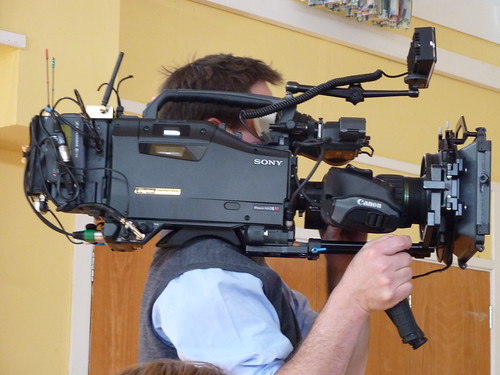 Big ambitions?Here's a classic case of buying a solution in the hope of finding a problem for it! I have often toyed with the idea of purchasing a video camera and taking it with me on my travels, but the effort and cost have always seemed to me to exceed the likely benefits.
However, the Flip Video, which arrived on the shelves in Britain only very recently, changes all that. True, there have been other, similar, devices here for some time. But none of them, in my opinion, matches the sleek good looks of the Flip.
Elaine and I have been putting it through its paces, and would like to share the results, and our thoughts, with you.
The Flip has a number of advantages over a traditional video camera, or a still camera that can shoot video. It has clearly been designed with the YouTube generation in mind, because the process of shooting, editing, saving and uploading a video is just so easy.
Let's put it this way: I have a firm principle that if you can't get something usable out of a device or an application within 5 minutes then it's too complicated. The Flip comes with a quick start guide that is, in effect, a sheet of card with instructions and illustrations on each side. I gave it a quick glance just in case it warned me of dire consequences if I set it up in the wrong order (it didn't) and to find out where the batteries went (I was trying to open the compartment with the on-off switch). Other than that, everything was straightforward, and within a very short time I had shot and edited a couple of videos and uploaded them to TeacherTube and YouTube. Spielberg: move aside!
I think this ease of use is important because it changes the rules. I may be a creative person, but if I want to quickly record my actions or your thoughts, I don't want to have to do a course in video editing first and I certainly don't want to risk losing or damaging a camera costing hundreds of pounds.
The editing facilities are limited, but that is just how I like them. There is an option to mix your videos using a sort of template and add a musical soundtrack, which is fun but irrelevant for my needs at present. More useful is the ability to use sliders to mark the start and ends of a video clip and snip it to exclude the bits you don't want. If you save the original video in its entirety you could, I suppose, carry out this process several times in order to create several useful short clips. However, if you're going to do that you would be better off using a proper video editing application. The “snipping” feature is really meant to be used only to get rid of the start and end bits which will not form part of the final product.
In trying it out, I wanted to see what the quality of sound and video would be like outdoors, or in noisy environments. It strikes me that the whole point of a device like this is to be able to slip it in your pocket or bag and use it as and when you like. In a school context, you'd want the children and young people to be able to work outside, such as in the playground, the street, or a science field trip without having to mess about in Audacity to sort the sound out once back in school.
I have to say I was very pleasantly surprised. For the most part, the sound in the clips here was fine – there was just a few minutes of an chat in a restaurant where the background clatter of crockery and cutlery made it difficult to hear Elaine. You have to get fairly close to the device, say about a foot, to ensure audibility.
Plus points
- Easy to use: there is basically one big red button to press!
- Very small and light
- Comes with the software built in...
- ... And installation is automatic
- Sound and visual quality are very good, especially before saving for the web
- Very easy to transfer videos from the device to a computer: use the pop-out arm to connect it via a USB port, and the software does the rest.
- Basic editing is very easy...
- ... As is uploading to YouTube or generating the code for embedding the video if it's uploaded to an unnamed web service such as TeacherTube.
Minus points
- I find it hard to stop recording, for some reason. Elaine thinks it may be because my fingers are big. She has no such difficulty.
- Storage capacity is 60 minutes. It would have been nice to have the option of reducing the quality or using an SD card to expand capacity.
- Just slightly too expensive to make class sets of 10 or 15 a viable possibility.
- Because everything is so automatic, it is not immediately obvious where the videos are being stored. It would be good to have a version which is geared for school network use.
Here are the results of our experimentation. Each of these lasts just a couple of minutes.
Return from a shopping trip
I wanted to see what the results would be like if I recorded in an urban environment. I sound puffed because I was lugging a huge amount of shopping with one arm.
Interview with me about articles and books
Interview with Elaine about uses for the Flip Video
Further uses for the Flip video
Here are some other possible educational uses we came up with:
- Ask teachers, technicians and support staff to record brief commentaries explaining what their job entails. These could be stored as part of the school's Careers resources.
- Ask pupils or staff to record a brief running commentary on a task they are carrying out.
- Carry out quick interviews.
- You could record interviews with people about an issue, and instruct different sets of pupils to use the “snipping” facility to edit them to reflect a particular point of view. This would be a good introduction to the concept of propaganda.
- Record pupil presentations...
- ... And use them for reflecting back to the pupil how they appear to an audience, for the purpose of improving their performance.
- Ask pupils to create brief “bulletins” about the work they're doing, for parents to be able to view, and/or for their e-portfolio.
- Ask pupils to record their thoughts on what is good about a piece of work they have done, and how it might be improved.
- Pupils could use the snapshot facility for extracting a suitable still shot to illustrate an essay, blog post or e-portfolio entry.
You'll find some other interesting ideas here and here. And Mark Warner has written an interesting review here.
If you can think of any that haven't been mentioned (I'm sure there are lots), please leave a comment in order to expand our horizons in this area.
This is a slightly modified version of an article which was originally published on 27th June 2008.